
Introduction
Largest Contentful Paint (LCP) is one of the most important Core Web Vitals metrics defined by Google. It measures how long it takes for the largest visible element on a webpage—such as a hero image, featured banner, or main text block—to load for users. A slow LCP issue fix creates a poor first impression, increases bounce rate, and negatively impacts search engine rankings.
If your website suffers from slow loading times, fixing LCP issues should be your top priority. This in-depth guide explains what LCP is, why it matters, and how to fix LCP issues fast using practical, proven optimization techniques. By the end of this article, you will have a clear checklist to significantly improve your website’s loading performance and user experience.
What Is Largest Contentful Paint (LCP)?
Largest Contentful Paint measures perceived page load speed. Instead of tracking when the entire page finishes loading, the LCP issue fix focuses on when the most important content becomes visible to the user.
Elements That Can Affect LCP
- Hero images or banners
- Featured images in blog posts
- Background images loaded via CSS
- Large blocks of text
- Video thumbnails
LCP Performance Thresholds
- Good: 2.5 seconds or less
- Needs Improvement: 2.5–4 seconds
- Poor: More than 4 seconds
To rank well and provide a great user experience, your goal should always be to keep LCP under 2.5 seconds.
Why Fixing LCP Is Critical for SEO
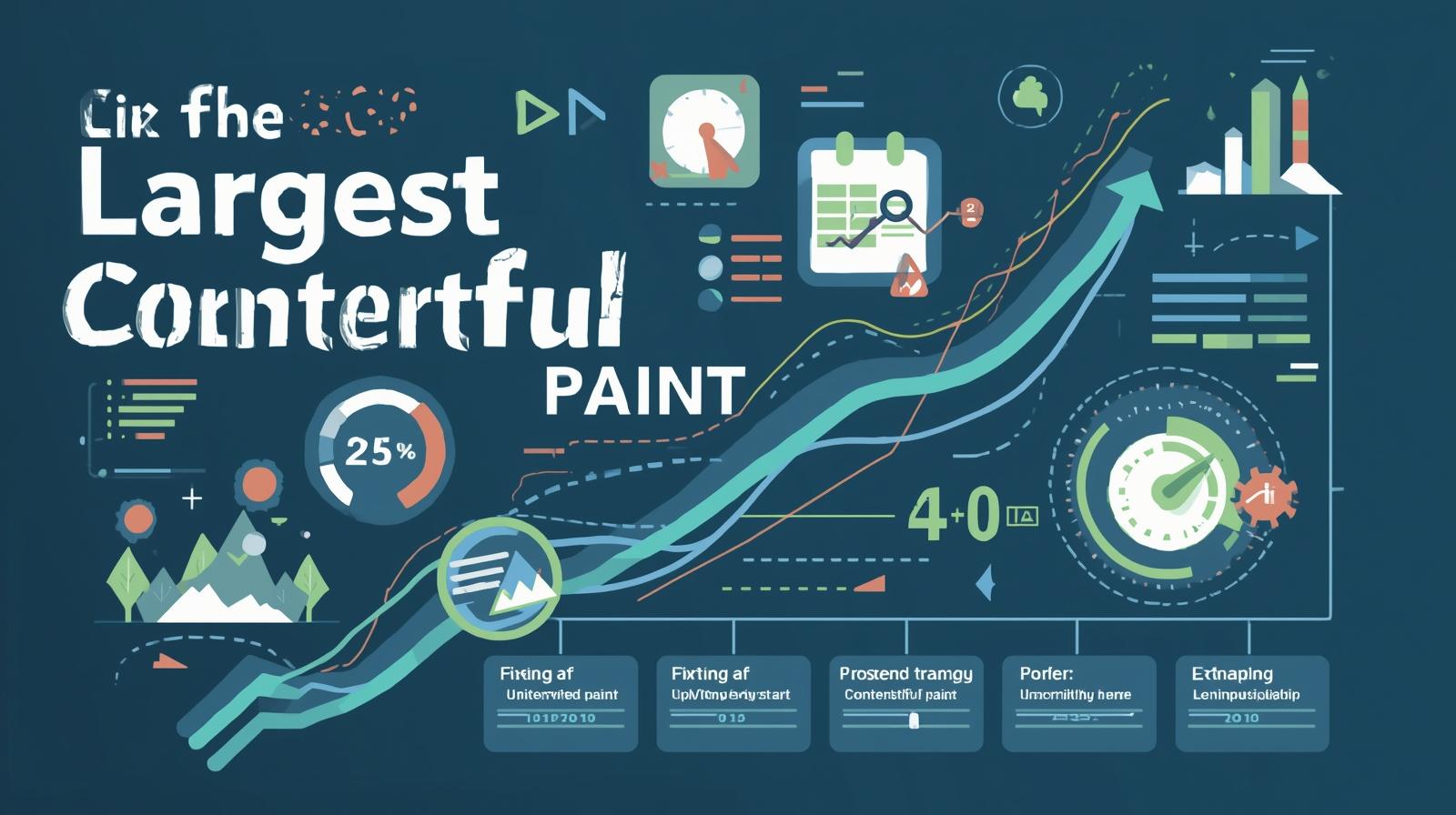
Google uses Core Web Vitals, including LCP, as a ranking factor. A slow LCP signals poor page experience, which can push your site down in search results.
Benefits of Improving LCP
- Faster perceived page speed
- Lower bounce rate
- Higher engagement and conversions
- Better mobile experience
- Improved Google rankings
Common Causes of LCP Issues
Before fixing LCP, it’s important to understand what causes it.
1. Slow Server Response Time
If your server takes too long to respond, the browser cannot start rendering content quickly.
2. Unoptimized Images
Large, uncompressed images are one of the biggest causes of poor LCP scores.
3. Render-Blocking CSS and JavaScript
CSS and JavaScript files that block rendering delay the loading of visible content.
4. Poor Hosting Performance
Low-quality or shared hosting often struggles to deliver content fast.
5. Excessive Third-Party Scripts
Analytics, ads, and tracking scripts can slow down initial page rendering.
Step-by-Step Guide to Fix LCP Issues Fast
Step 1: Identify Your LCP Element
The first step is to identify which element is causing the LCP issue fix delay.
Tools to identify LCP:
- Google PageSpeed Insights
- Chrome DevTools (Performance tab)
- Lighthouse
Once identified, you can focus optimization efforts on that specific element.
Step 2: Improve Server Response Time
A fast server lays the foundation for good LCP.
Quick fixes:
- Upgrade to high-performance hosting
- Use a Content Delivery Network (CDN)
- Enable server-side caching
- Optimize database queries
Reducing Time to First Byte (TTFB) can dramatically improve LCP scores.
Step 3: Optimize Images for Faster Loading
Since images are often the largest contentful element, optimizing them is crucial.
Image optimization best practices:
- Use modern formats like WebP or AVIF
- Compress images without quality loss
- Serve responsive images using
srcset - Avoid oversized images
Properly optimized images can reduce LCP time by seconds.
Step 4: Preload the LCP Image
Preloading tells the browser to prioritize important assets.
How to preload LCP images:
- Add a preload tag for hero images
- Preload critical background images
- Avoid lazy-loading above-the-fold images
This ensures the browser loads the most important content first.
Step 5: Eliminate Render-Blocking Resources
Render-blocking resources delay page rendering.
How to fix them:
- Inline critical CSS
- Minify CSS and JavaScript
- Defer non-critical JavaScript
- Remove unused CSS
These changes allow the browser to render visible content faster.
Step 6: Optimize Fonts
Web fonts can delay LCP if not handled correctly.
Font optimization tips:
- Use system fonts where possible
- Limit font families and weights
- Use
font-display: swap - Preload critical fonts
This prevents invisible text and layout delays.
Step 7: Use a Content Delivery Network (CDN)
A CDN serves content from servers closer to the user.
Benefits of using a CDN:
- Faster global load times
- Reduced server load
- Improved LCP on mobile networks
CDNs are especially useful for image-heavy websites.
Step 8: Reduce JavaScript Execution
Heavy JavaScript can delay rendering and LCP.
JavaScript optimization strategies:
- Remove unused JavaScript
- Use code splitting
- Defer third-party scripts
- Avoid large JavaScript frameworks on critical pages
Keeping JavaScript lean improves overall performance.
Step 9: Optimize CSS Delivery
CSS files control how content appears on the screen.
CSS optimization techniques:
- Minify CSS files
- Combine smaller CSS files
- Load non-critical CSS asynchronously
- Avoid large CSS frameworks when unnecessary
Optimized CSS speeds up content rendering.
Step 10: Improve Mobile Performance
Most users browse on mobile devices, making mobile LCP critical.
Mobile LCP tips:
- Use mobile-friendly images
- Reduce DOM size
- Avoid heavy animations
- Test performance on real devices
Mobile-first optimization leads to better rankings and user experience.
Best Tools to Measure and Monitor LCP
- Google PageSpeed Insights
- Google Search Console (Core Web Vitals report)
- Chrome DevTools
- Lighthouse
- WebPageTest
Use these tools regularly to track progress and identify new issues.
Common LCP Optimization Mistakes to Avoid
- Lazy-loading the LCP image
- Ignoring server performance
- Overusing plugins and scripts
- Focusing only on desktop performance
- Chasing scores instead of real user experience
Avoiding these mistakes ensures long-term performance gains.
LCP Optimization Checklist (Quick Summary)
- Identify the LCP element
- Improve server response time
- Optimize and preload images
- Remove render-blocking resources
- Optimize fonts, CSS, and JavaScript
- Use a CDN
- Focus on mobile performance
CONCLUSION
LCP issue fix fast is one of the most effective ways to improve website performance, SEO rankings, and user satisfaction. By focusing on server speed, image optimization, and render-blocking resources, you can achieve noticeable improvements in a short time.
Remember, LCP optimization is not a one-time task. Regular testing, monitoring, and performance audits are essential to maintain fast loading times as your website grows.
By following this complete guide on how to fix LCP issues (Largest Contentful Paint) issues fast, you’ll be well on your way to delivering a faster, smoother, and more successful website experience.
